Best 5 Skills for YouTube Video Editing (2026)
Best skills for YouTube video editing on TubeMarket: silence cuts, vertical reframe, punch-in zooms, one local pipeline, and Remotion motion skills. Fit only.
By TubeMarket · · youtube video editing, ai editing, shorts, faceless youtube, talking head
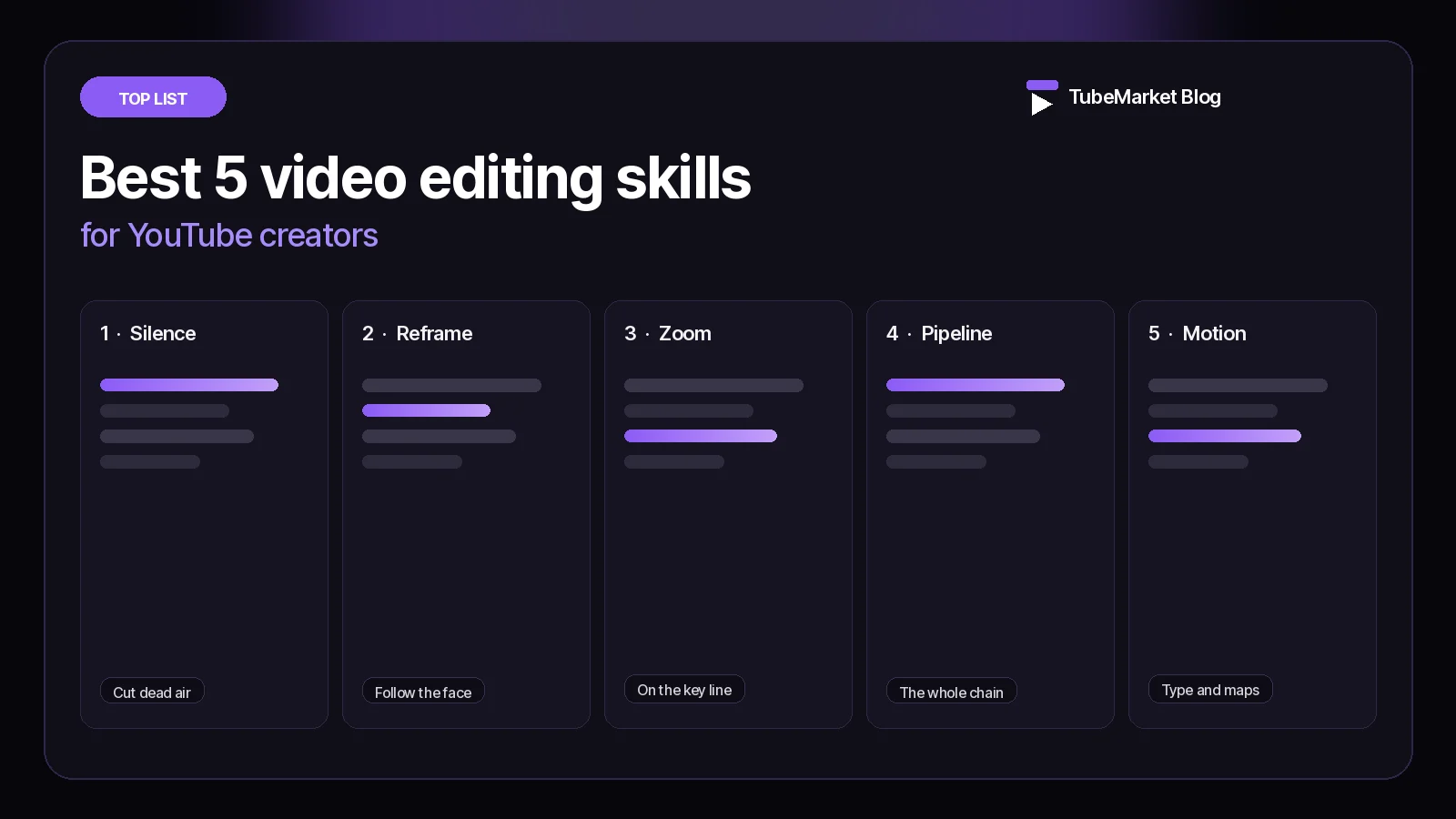
A YouTube edit is the order of the shots, then the cuts that make that order watchable. Silence, a vertical crop, a zoom on the line that matters, captions and the export are steps of that job. This guide ranks the editing skills on the TubeMarket shelf. It is a fit ranking: which step the skill is built for, where it runs, and what the listing and the skill file actually say. It is not a watch-time study, and it does not invent views, ratings or revenue.
The Editing stage also lists tools, workflows and templates. This page ranks five automation skills whose job is a step of the edit, or the chain of those steps. A directory is not included. A toolkit whose job is the script, the voice and the pictures together is listed later, not ranked. The transcriber and the caption skill are filed under Captions, so they are linked in the workflow and not ranked here. Full editors, transition packs and command-line tools are covered in Best AI video editing tools for YouTube.
We judged each skill on four things:
- Step: a silence cut, a vertical crop, punch-in zooms, the whole camera chain, or motion graphics in code
- Where it runs: on your machine with ffmpeg, or inside an agent that writes Remotion
- Access: the listing price, and whether the listing says it needs an API key
- What we can check: the TubeMarket listing, and the skill file or README on 11 November 2026
Quick picks
- Silence and filler words: silence-cutter, local ffmpeg
- 16:9 to vertical, following a face: auto-reframe, local ffmpeg
- Punch-in zooms on emphasised words: punch-zoom, local ffmpeg
- That whole chain, including captions: video-shorts-pipeline, local ffmpeg
- Type, maps and motion, built in code: remotion-dev-skills, inside the agent
A talking-head channel and a Shorts channel use the first four on footage you filmed. A faceless channel that never films a person uses the Remotion skills. The format changes the frame. It does not add a sixth skill to this ranking.
TubeMarket catalog, ranked
The order below is the order of the work on a camera file, then the code path. It is not a quality score.
1. silence-cutter: the silence cut
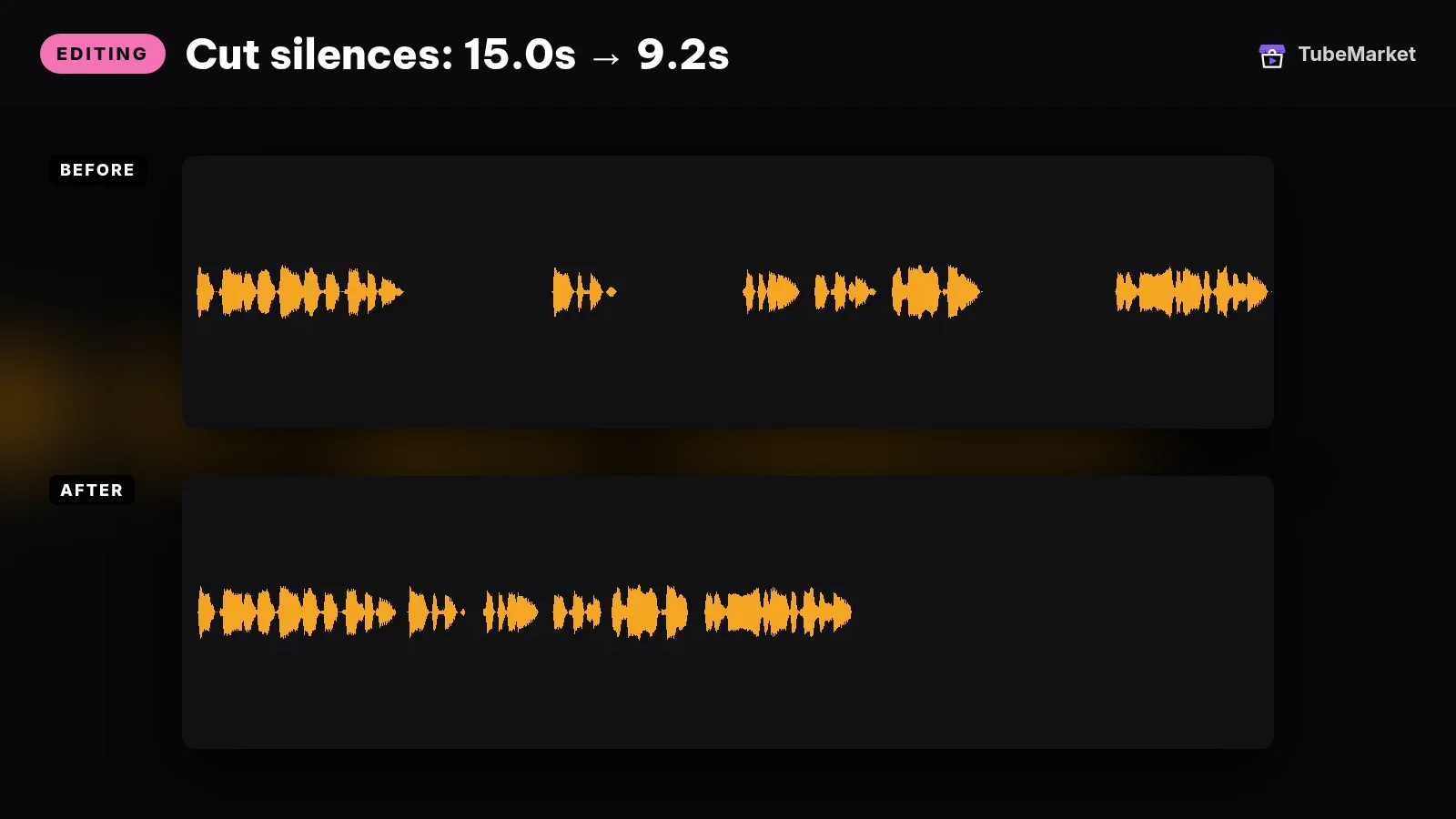
The listing title is "Cut silences and filler words from talking videos". The shelf files it as an automation skill for the Editing stage, free, MIT, owned by TubeMarket Studio. The listing says it removes silences and fillers such as um and uh, runs ffmpeg on your machine, and needs no API key. The requires line is Claude Code or Cursor, Python 3.10+, and ffmpeg.
The skill file says it cuts from a transcript, not only from loudness. Volume finds where nobody speaks. The transcript also finds where someone speaks and says nothing. Both get cut. It needs a word-level transcript from local-whisper-transcriber first.
The same file names three modes. aggressive multiplies the pause threshold by 0.7, for Shorts that need a tight pace. balanced is 1.0, the default. gentle is 1.5, for podcasts that need breathing room. It says the Vietnamese preset uses −34 dB and 380 ms, and the English preset uses −30 dB and 300 ms, because an English threshold can cut a Vietnamese sentence in half. --keep-fillers keeps filler words and only cuts silence. --dry-run writes the keep-list and does not render.
The outputs named in the file are the cut video and an .edl.json keep-list, so later skills can remap timestamps. The file says the original transcript timestamps are wrong after the cut. Re-run the transcriber on the cut file, or let the pipeline remap them.
- Pros: the job is the rough cut of a talking-head file, on your machine, with no API key. The file gives you a dry run before a render.
- Cons: it needs a transcript first. An aggressive mode can clip a breath or the timing of a joke, so preview the keep-list. It does not choose which take to keep.
Use this for the silence cut. You still decide which section of the recording belongs in the video.
2. auto-reframe: the vertical crop
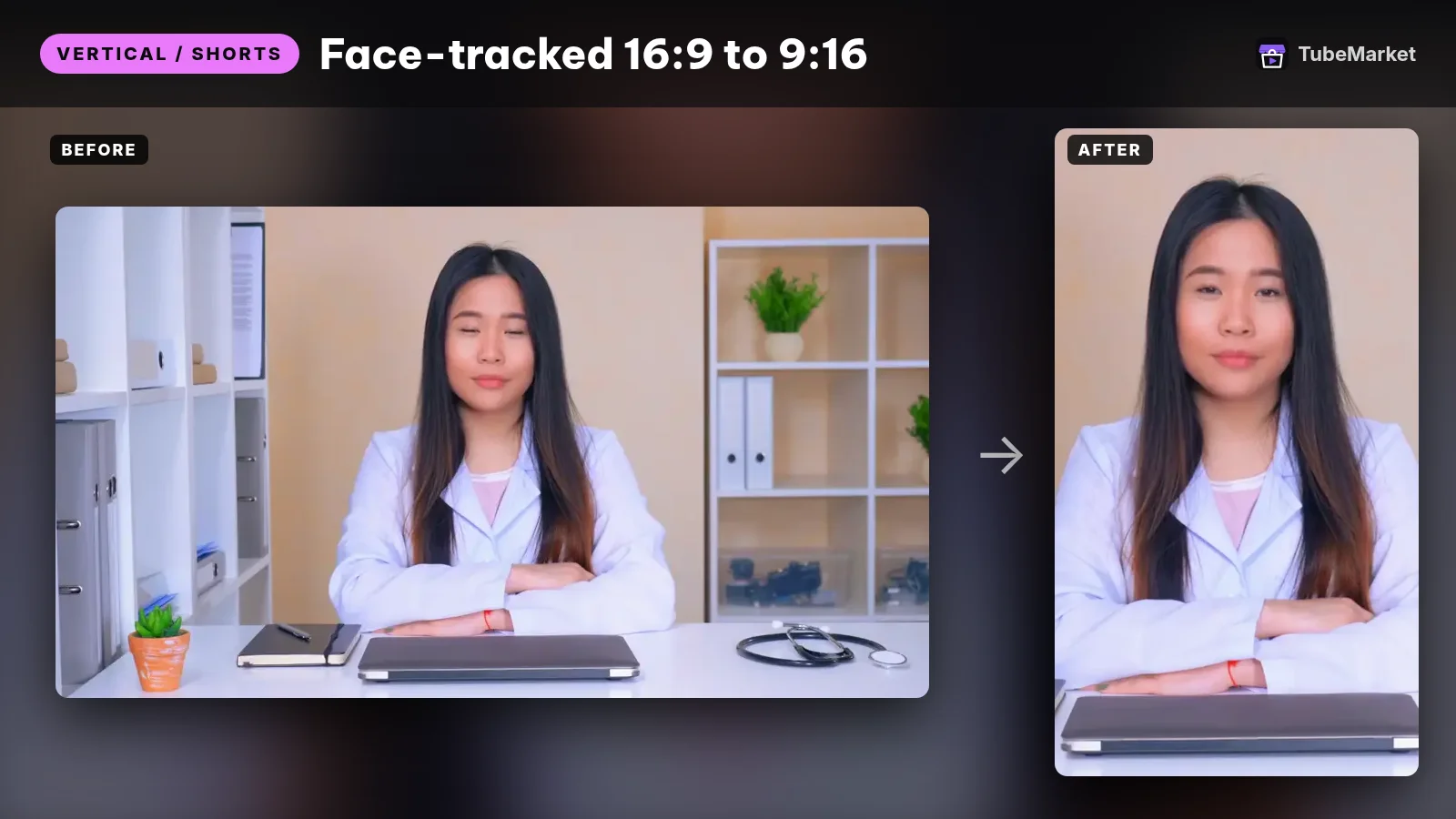
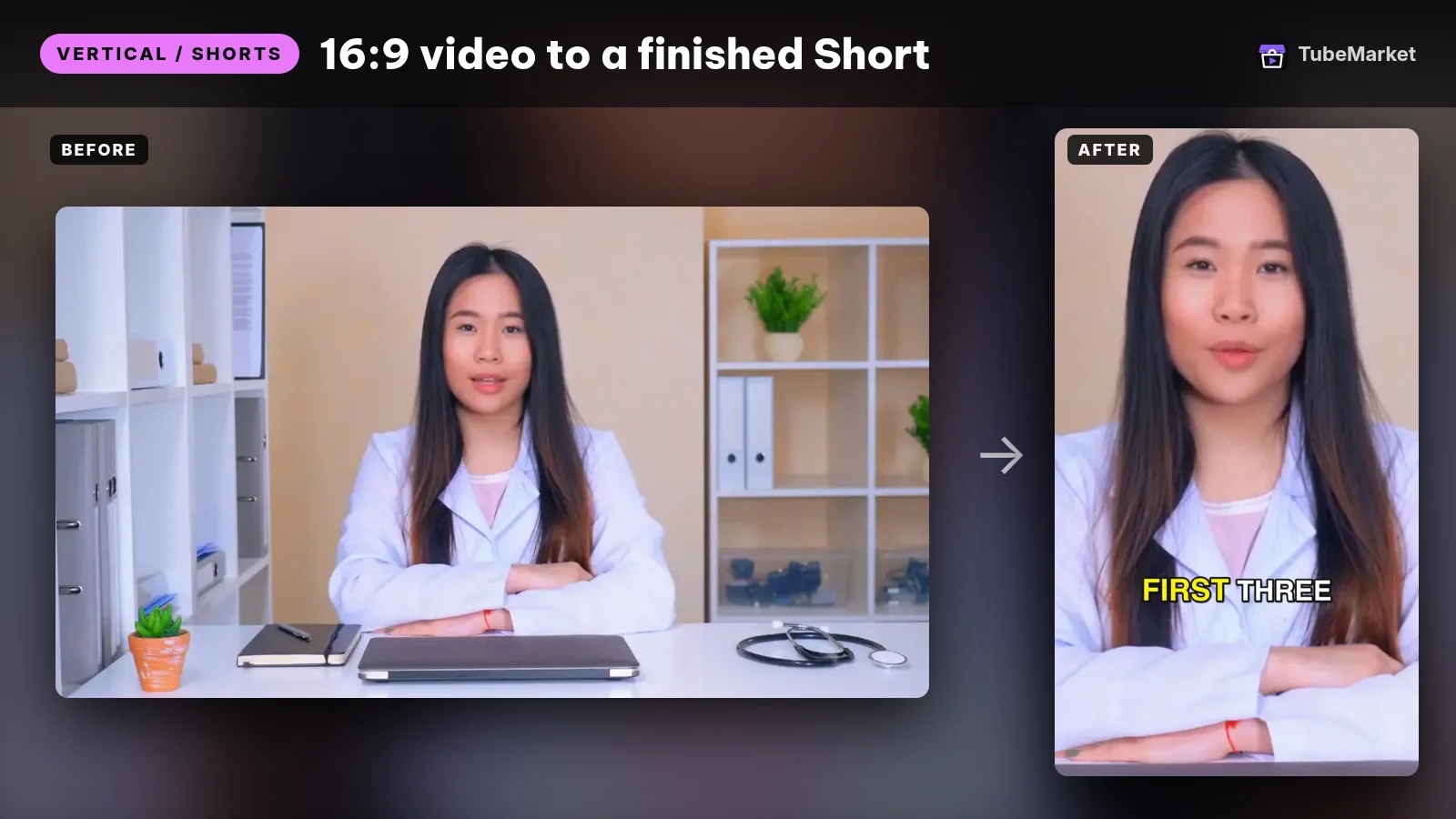
The listing title is "Reframe landscape video to vertical automatically". The shelf files it under Vertical / Shorts, not Editing. The job is the crop, which is why it is ranked here. Free, MIT, TubeMarket Studio. The listing says it converts 16:9 to 9:16, follows the speaker, and uses hard cuts. No API key. The requires line is the same: Claude Code or Cursor, Python 3.10+, and ffmpeg.
The skill file says it can also target 4:5 or 1:1. --mode face uses MediaPipe and picks the largest face. --mode center is a centre crop. --mode top pins a horizontal centre crop to the top edge, for screen recordings. It does not need a transcript.
The file says a crop that follows the face every frame looks like a shaky camera. The script holds the frame and jumps only after the speaker has moved and stayed there. The defaults it names are --min-hold 1.2 seconds and --jump 6% of the width. --dry-run writes a .reframe.json plan.
The file's own limits: with several people in frame it tracks the largest face, not the person who is speaking. Without MediaPipe installed it falls back to a centre crop and says so.
- Pros: the vertical step for a Short, TikTok or Reel, from footage you already shot wide. You can read the crop plan before the render.
- Cons: it is filed under Shorts, so it is easy to miss if you only browse Editing. Two people side by side are the case the file says it gets wrong.
Use this for the reframe, after the silence cut and before the zooms. The punch-zoom file says to run zooms after the frame is already 9:16.
3. punch-zoom: zooms on the words
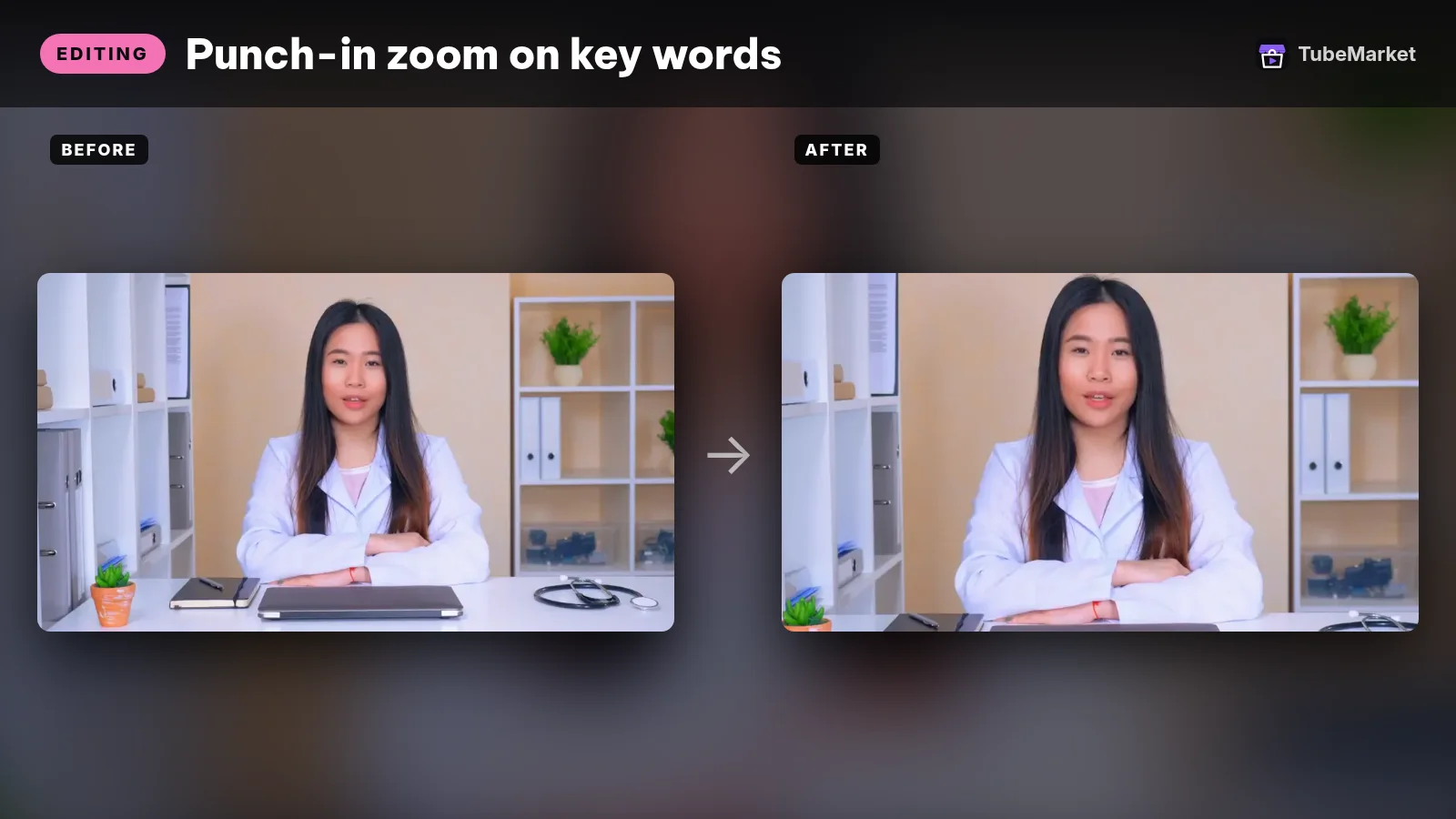
The listing title is "Keep viewers hooked with punch-in zooms". The shelf files it under Editing. Free, MIT, TubeMarket Studio. The listing says it adds punch-in zooms on emphasised words and slow push-ins on long takes, with no API key. Same requires line as the two skills above.
The skill file describes two motions, both tied to the speech. A punch is an instant zoom on the emphasised word, held to the end of the clause. A push is a slow Ken Burns move under a long passage. It reads the transcript. --density is zooms per second. The file says 0.12 is about one zoom every 8 seconds, the default it names for a 30–60 second short, and that a 15 second video can use 0.2. --dry-run prints the zoom points and does not render.
The file scores a word from a keyword list, from a number, from a pause before the word, and from a stretched sound, then enforces a minimum gap of 2.2 seconds between zooms. It says the English preset zooms to 1.22 and the Vietnamese preset to 1.18. For video that is already 9:16, run this skill after auto-reframe.
- Pros: motion on a locked-off talking head, chosen from the words, without keyframes drawn by hand. The dry run shows which words it picked.
- Cons: it needs the transcript. The density flag is yours to set, and a higher number means more zooms. The 1.18 and 1.22 figures are presets in the file, not a test of what holds attention.
Use this for the punch-in, after the frame is the frame you will export.
4. video-shorts-pipeline: the chain in one skill
Turn a raw talking video into a finished 9:16 Short
 video-shorts-pipeline · by TubeMarket Studio
Turn one raw talking video into a finished 9:16 Short: transcript, silence cuts, face tracking, zooms, captions. No API key needed.
For: Vertical / Shorts, Editing · Shorts, Talking head
The listing title is "Turn a raw talking video into a finished 9:16 Short". The shelf files it under Vertical / Shorts, Editing and Captions. Free, MIT, TubeMarket Studio. The listing says it does the transcript, the silence cuts, face tracking, zooms and captions, with no API key. Same requires line.
The skill file calls it an orchestrator. It runs the other video skills in this order: transcribe, cut silence, remap the old timestamps onto the new timeline without running Whisper again, reframe to vertical, punch zoom, then captions last so the text is not cropped away. The default aspect it names is 9:16. It also names 4:5 and 1:1. --dry-run writes the plan files and does not render. --skip can drop a step.
The limits in the file: one speaker, one camera angle. It does not pick the best moment from a long video. It edits the whole file you give it. To take a highlight from a 30-minute recording, rough-cut that section first.
- Pros: one skill runs the order the other files already ask for, including the timestamp remap so you do not transcribe twice.
- Cons: you do not get a timeline to drag clips around. A two-person interview is the case the file says is not built. It will not find the highlight for you.
Use this when the deliverable is the finished vertical file and you will read the dry-run plans. Use the three skills above when you only need one of those steps.
5. remotion-dev-skills: motion graphics in code

The listing title is "Teach Claude Code to build Remotion videos". The shelf files it under Editing and Captions. The listing says it is free and open source, that a license is not stated, and that it requires Claude Code or Cursor. What the listing says it does: official Agent Skills from Remotion that help an agent write Remotion video code.
On 11 November 2026 the README says Remotion maintains these skills as best practices for Remotion projects, for agents including Claude Code and Cursor. The install line it gives is npx skills add remotion-dev/skills. That page lists 13 skills. The ones that are the edit itself are /remotion-markup (compositions, animation, layout, type, media, effects, audio, fonts and timing), /remotion-captions, /remotion-maps, /remotion-studio for a preview, and /remotion-render for a video or a still. /remotion-create starts a project. The others are docs, a license lookup, upgrades, SaaS architecture, interactivity, multimedia metadata, and a best-practices skill that contains the rest. The same docs live at remotion.dev/docs/ai/skills.
The GitHub repository, checked the same day, does not report a license file. The separate listing Remotion skills pack says the license is the Remotion License and that the price is free. It describes the same family as 13 preinstalled skills. This page does not rank that pack as a second method. Use the /remotion-license skill, which the README says looks up Remotion's license, before you publish. This page does not restate those terms.
- Pros: the motion-graphics step, for a video that is type, charts or maps rather than a camera file.
/remotion-renderis the export. - Cons: it does not cut silences out of a talking-head recording. You are editing code, with an agent. The license is not stated on the main listing.
Use this for motion graphics and the render, when the picture is built, not filmed.
A practical editing workflow
Chain them in this order. Skip a step when you do not need that job.
- Write the script first, if you do not have the words yet. That job is ranked in Best 3 skills for YouTube scriptwriting. These editing skills do not write the script.
- Rough-cut the section you want when the file is a long recording. The pipeline file says it edits the whole file and does not pick the highlight. A trim that does not re-encode is the tool LosslessCut. It is a tool, ranked in the tools guide, not one of the five skills.
- Transcribe with local-whisper-transcriber. The silence skill and the zoom skill read that JSON. It is filed under Captions. The listing says Whisper runs locally and needs no API key.
- Cut silences with silence-cutter. Use the dry run. Pick the mode the file names for the format: aggressive for a tight Short, gentle for a podcast.
- Reframe with auto-reframe when the delivery is vertical. Read the plan. If two people share the frame, the file says it follows the largest face.
- Add punch-ins with punch-zoom after the reframe. That is the order the zoom file asks for. Run the dry run and drop a zoom that lands on a throwaway word.
- Burn captions last with word-captions, so a later crop does not slice the text. That skill is filed under Captions. Other caption listings are in Best AI caption tools for YouTube.
- Or run steps 3 to 7 with video-shorts-pipeline. Dry-run first, read the three plan files the skill file names, then render.
- Build type and maps with Remotion skills when there is no camera file to cut. Export with
/remotion-render. - Leave B-roll as its own job. B-roll Prompt Director writes prompts for cutaways. It does not place them on a timeline. It is ranked in Best AI B-roll tools for faceless YouTube. The voice, if the video is faceless, is covered in Best AI voiceover tools for faceless YouTube.
Browse every editing listing, including the tools this page does not rank, on the Editing stage. Vertical crops also sit on the Vertical / Shorts stage. For a faceless channel, start from faceless storytelling. For a filmed Short, start from Shorts. A talking-head channel can start from talking head.
How to choose
- Start with the silence cut if a person is talking and the video drags. That is
silence-cutter. - Add the reframe only when the export is vertical. That is
auto-reframe. A 16:9 YouTube video does not need it. - Add zooms after the frame is final. That is
punch-zoom. - Use the pipeline when you want those steps together, including the transcript and the captions, in the order the files specify. That is
video-shorts-pipeline. - Use Remotion when the video is designed, not filmed. That is
remotion-dev-skills. - The four camera skills run locally. Their listings say they need no API key. They do need ffmpeg, Python 3.10+, and Claude Code or Cursor, which is the requires line. If the edit has to stay inside a timeline editor you already know, the shelf's answer is a tool, linked below, not one of these skills.
- Keep the taste. The skill can cut a pause. You still decide the story order, the B-roll and the last shot.
On the shelf, but not these editing skills
Real listings. A different job, so they are not in the ranking above.
- The transcript and the captions. local-whisper-transcriber and word-captions are automation skills. Both are filed under Captions. The pipeline calls them. A captions ranking is a different page from this one.
- A prompt skill, not a cut. B-roll Prompt Director writes shot prompts. The listing says the prompts are ready to paste into the image or video tool you already use, and that it needs no API key.
- The same Remotion skills, already on disk. Remotion skills pack is a separate listing. The title is "Get 13 preinstalled Remotion skills for Claude". The price on that listing is free. The license label is Remotion License. The requires line adds Node.js 18+ and Remotion. It is the same family as
remotion-dev-skills, not an extra technique. - A skill that builds the whole video. claude-code-video-toolkit is filed under Script, Voiceover and Editing. The TubeMarket title is "Produce Remotion videos with Claude Code". The README says you tell Claude Code what video you want and it writes the script, generates the voiceover, music and visuals, and renders an MP4. The license on the listing is MIT. That README's workflow includes an editing phase between audio and rendering. Use it when the deliverable is that produced video. It is not a silence cut. The script guide already treats it the same way: the job is the video, not one step.
- A directory. awesome-claude-skills is filed under Editing, among other stages. The listing says it is a curated list of Claude skills, with a media and video section. A list does not cut a file.
- Tools. auto-editor, autocut, LosslessCut, Shotcut, OpenCut, Descript and CapCut are tools on the same shelf. They are ranked, with their limits, in Best AI video editing tools for YouTube. This page does not repeat that ranking.
Comparison
- silence-cutter: Editing; free; MIT; local ffmpeg; cuts silences and fillers from a transcript; needs the transcriber first
- auto-reframe: Vertical / Shorts; free; MIT; local; 16:9 to 9:16, 4:5 or 1:1; tracks the largest face, not the active speaker
- punch-zoom: Editing; free; MIT; local; a punch and a slow push, chosen from the transcript; run it after the reframe
- video-shorts-pipeline: Shorts, Editing and Captions; free; MIT; local; runs transcribe, cut, reframe, zoom and captions; does not pick a highlight
- remotion-dev-skills: Editing and Captions; listing says free and open source, and that a license is not stated; agent skills for Remotion; the README lists 13 skills, including markup, captions, maps and render
- remotion-skills-pack: not a separate rank; the same Remotion skills, preinstalled; the listing says Remotion License and free
- local-whisper-transcriber and word-captions: Captions; the pipeline calls them
- digitalsamba-claude-code-video-toolkit: a skill, but the job is a produced video; MIT; editing is one phase inside that job
Prices and plans change. Verify them on each project's page.
FAQ
What are the best skills for YouTube video editing? On TubeMarket, the automation skills whose job is a step of the edit are silence-cutter, auto-reframe, punch-zoom, video-shorts-pipeline and remotion-dev-skills. "Best" here means which step they fit. We did not score them against each other.
What is an AI video editing skill on this shelf? A skill file an agent can run, filed as an automation skill. The four TubeMarket Studio skills run locally with ffmpeg, and their listings say they need no API key. The Remotion skills tell the agent how to write and render a video in code. Full editors such as Shotcut and CapCut are tools. They are in the tools guide linked above.
Should I render before the dry run? The silence, reframe, zoom and pipeline files each describe a dry run that writes a plan and does not render. The pipeline file says to look at those plans, adjust the preset, then render. Use that order.
Do faceless channels use the same editing skills? Not the camera ones. silence-cutter, auto-reframe and punch-zoom expect a frame to cut or to crop, and the zoom and silence skills expect a transcript of someone speaking. A faceless video built from type, charts or maps uses the Remotion skills. Shot prompts for cutaways are B-roll Prompt Director. A toolkit that writes the script, the voice and the pictures is claude-code-video-toolkit, linked above.
Do Shorts need a different skill? The pipeline file's default aspect is 9:16. auto-reframe is the crop, and it also names 4:5 and 1:1. A Short still needs you to choose the section. The pipeline file says it does not find the highlight inside a long recording.
Will an editing skill get the video views? An edit is one step. The script, the title, the thumbnail and whether anyone clicks are separate. This page does not quote views, watch time or revenue.
Catalog gaps
TubeMarket does not yet list:
- a skill that picks the best moment out of a long recording (the pipeline file says that is not its job),
- active-speaker detection for two people in one frame (the auto-reframe file and the pipeline file both say this is missing),
- a skill that exports a Premiere or Resolve timeline (that job, on this shelf, belongs to the tool auto-editor, covered in the tools guide),
- an editing skill whose only job is color.
The four camera skills are documented in the public skill files linked below. The Remotion listing does not state a license. That gap is real.
Sources
- TubeMarket, silence-cutter: https://tubemarket.io/item/silence-cutter/
- TubeMarket, auto-reframe: https://tubemarket.io/item/auto-reframe/
- TubeMarket, punch-zoom: https://tubemarket.io/item/punch-zoom/
- TubeMarket, video-shorts-pipeline: https://tubemarket.io/item/video-shorts-pipeline/
- TubeMarket, remotion-dev-skills: https://tubemarket.io/item/remotion-dev-skills/
- TubeMarket, local-whisper-transcriber: https://tubemarket.io/item/local-whisper-transcriber/
- TubeMarket, word-captions: https://tubemarket.io/item/word-captions/
- silence-cutter skill file: https://github.com/wanghie/tubemarket-skills/blob/main/skills/silence-cutter/SKILL.md
- auto-reframe skill file: https://github.com/wanghie/tubemarket-skills/blob/main/skills/auto-reframe/SKILL.md
- punch-zoom skill file: https://github.com/wanghie/tubemarket-skills/blob/main/skills/punch-zoom/SKILL.md
- video-shorts-pipeline skill file: https://github.com/wanghie/tubemarket-skills/blob/main/skills/video-shorts-pipeline/SKILL.md
- tubemarket-skills repository (MIT on the GitHub license field, checked 11 November 2026): https://github.com/wanghie/tubemarket-skills
- Remotion Agent Skills README, checked 11 November 2026: https://github.com/remotion-dev/skills/blob/main/README.md
- Remotion Agent Skills docs: https://www.remotion.dev/docs/ai/skills
- Remotion repository, no license file reported on 11 November 2026: https://github.com/remotion-dev/skills
- claude-code-video-toolkit README: https://github.com/digitalsamba/claude-code-video-toolkit
- Related posts: Best AI video editing tools for YouTube, Best 3 skills for YouTube scriptwriting, Best AI caption tools for YouTube, Best AI B-roll tools for faceless YouTube, Best AI voiceover tools for faceless YouTube